Deploy a Windows Server with a Azure DevOps Pipeline
Azure Pipelines supports continuous integration (CI) and continuous delivery (CD) to continuously test, build, and deploy your code. In this post I am deploying a windows server using Azure Devops pipeline, connect Azure Devops to a subscription with a service principle.
To follow along you will need a Azure subscription. Signup link for Auzre .Next you will need is a Azure Devops account sing up for Azure Devops.
Create Azure Devops Organization
Sign in to your Azure Devops using the devops.azure.com and follow below steps or refer How to Create an Organization for detailed steps .
- Click on the New Organization link and create your organization and navigate to your project.
- Click on Continue when prompted for Terms and Conditions In the screen that appears, enter a name of the organization, location, and the captcha challenge.
- Then click on Continue.
Create New Project
After the organization has been created, you will also receive an email confirmation of the same and will be redirected to the page where you can create a new project follow below steps or refer How to create a project for detailed steps.
- Click on new project on the top right of you screen.
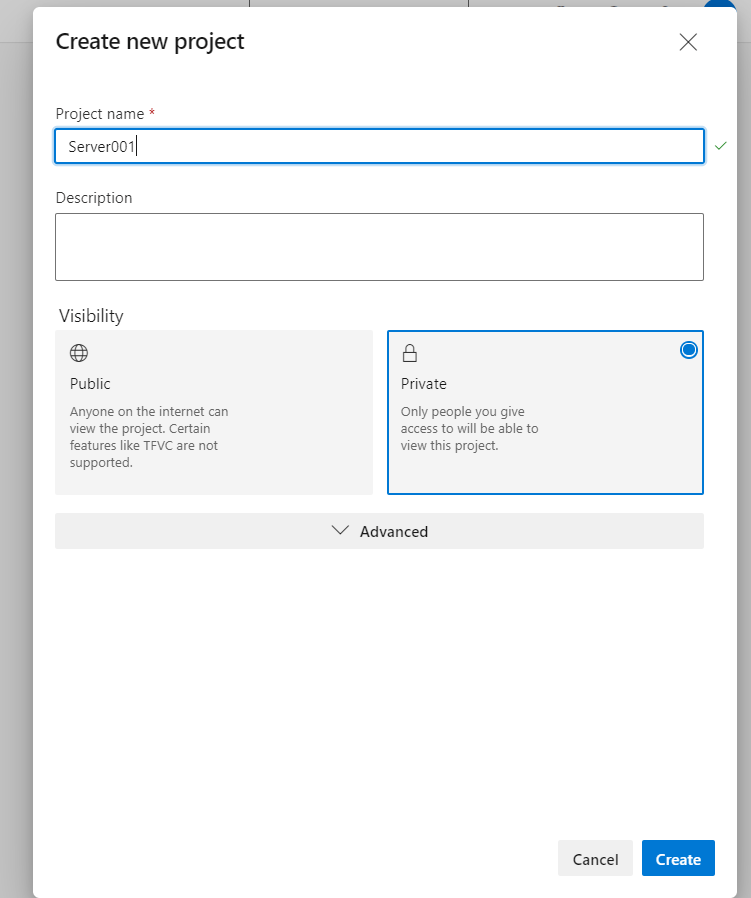
- Enter project name, choose the visibility to private. Click on Create Project.
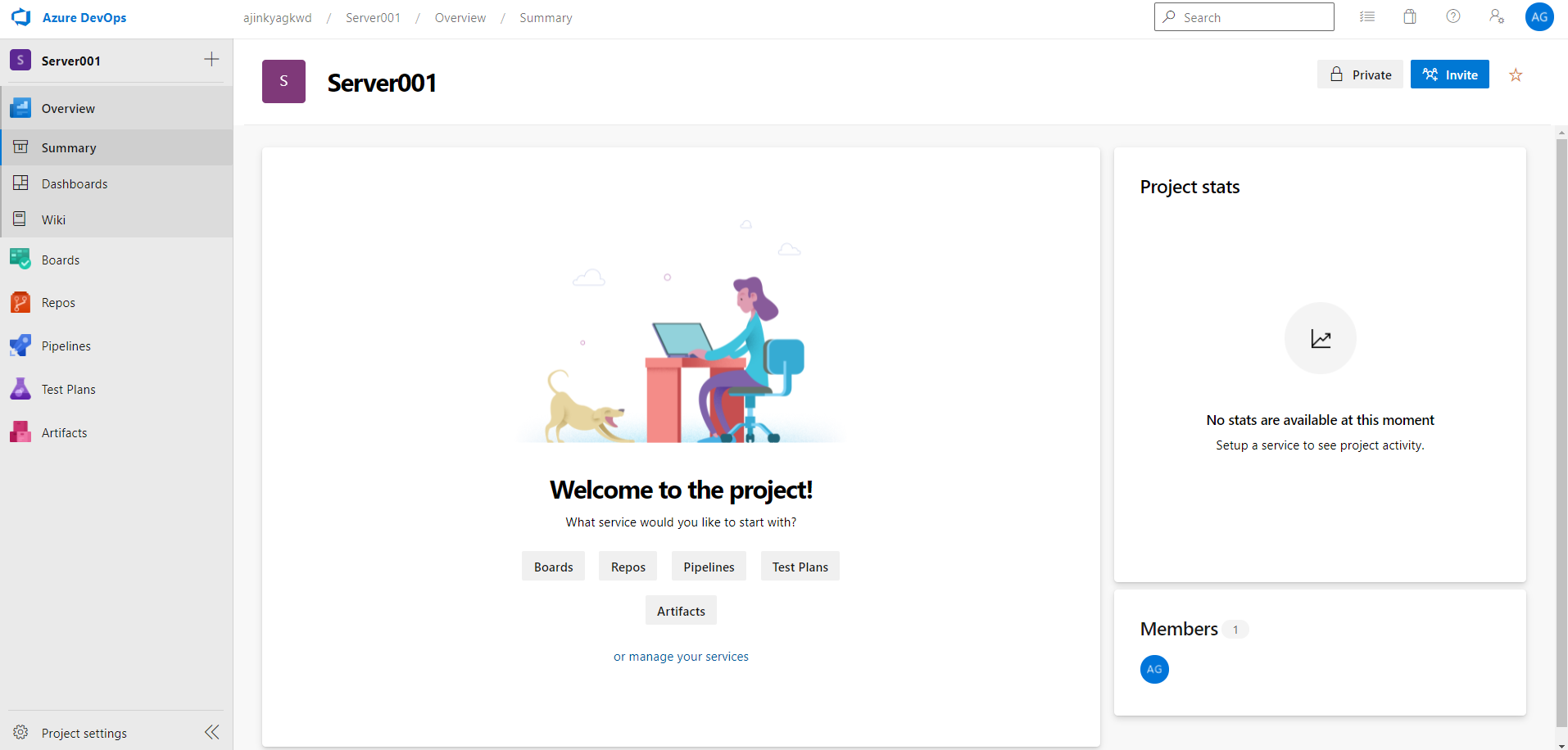
- You will then be redirected to the organization dashboard showcasing the new project.
Repos
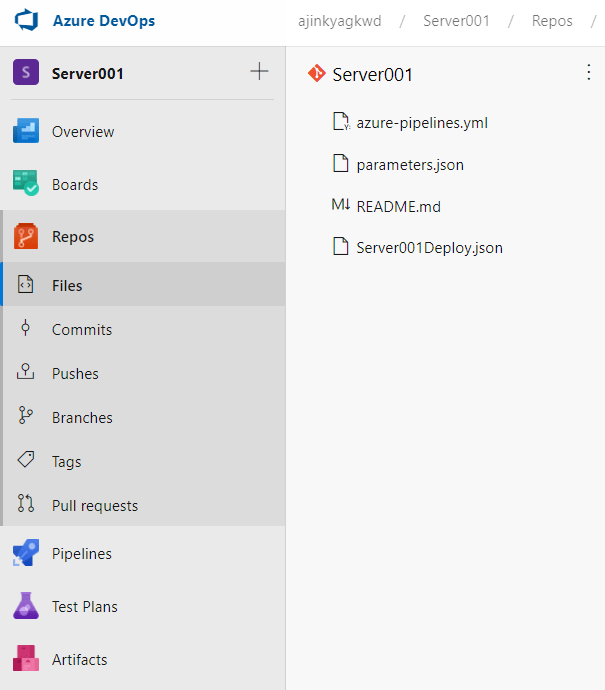
The repository is where all of the project’s configuration files are kept. Repos can be cloned to different editors. To clone repositories to VS Code, you must have both VS Code and Git installed on your machine. For the time being, we will modify in devops, so click on initialize. After it has been initialized, you can add a template file. You can make use of a pre-existing ARM template. You can also download the template I used from here. To make and changes to devops files he you will have to click edit makes changes and click Commit to save your file.
- To add a template file, create a new file called Server001Deploy.json.
- Copy and paste the code.
- Then click the commit button to save the template file. If you like, you may leave a remark.
- Next create a new file name it as parameters.json
- Copy paste the code
- To update the parameter file update the value for adminUsername, adminPassword and dnslabelPrefix.
- Enter value of your choice and click commit to save the file.
Service Connection
A service connection is a service principal that acts on devops behalf to manage and deploy resources in your azure subscription. Visit Manage service connection for detailed information and steps.
- Go to project settings which is at the bottom on the left.
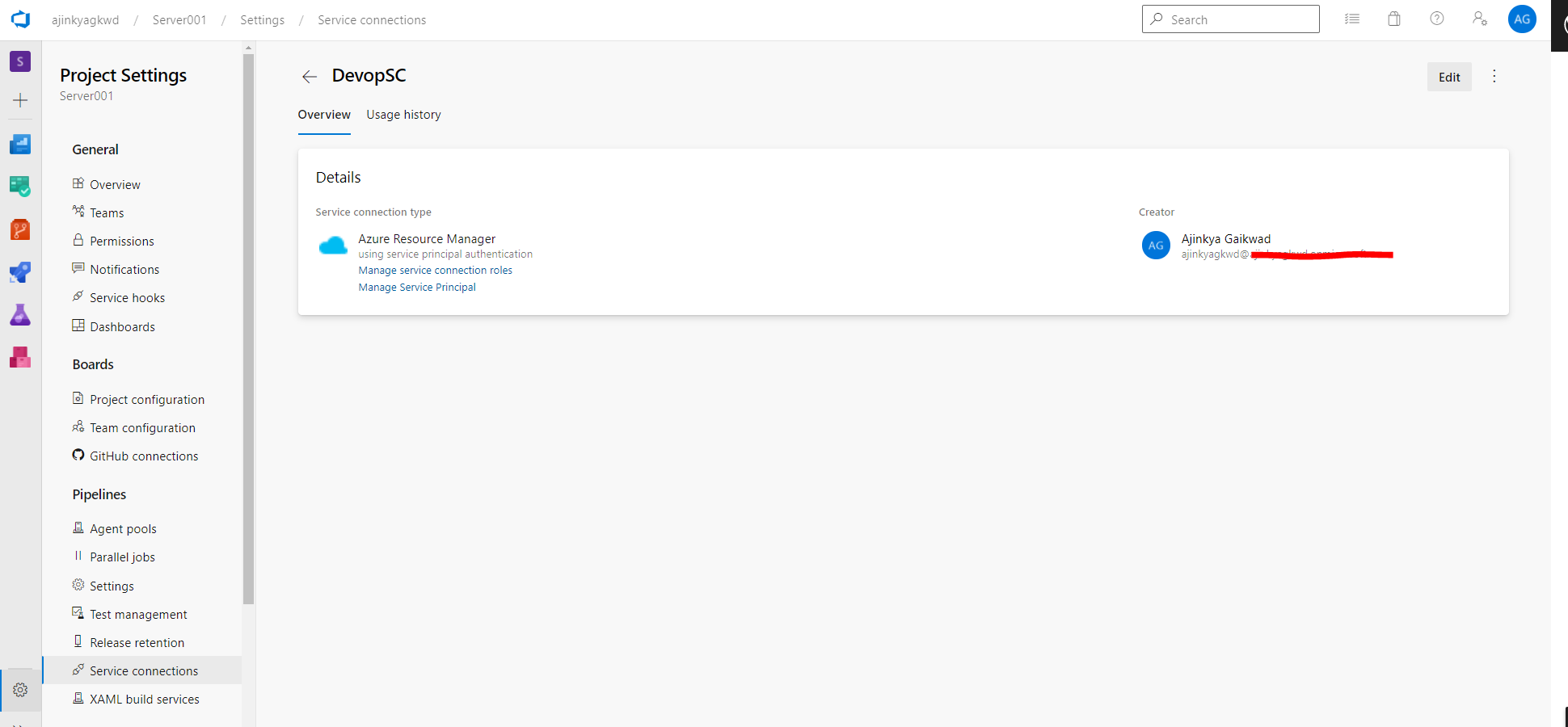
- Go to Service connections and click on create service connection There a lot of option available for this project we will use Azure Resource Manager and click next.
- Select Service principal automatic and click next.
- Once prompted to authenticated you will have to enter your account login in order to authenticate.
- You can select a resource group we will leave it blank because we need to create a new resource group for this deployment.
- Enter a name and description for your service connection.
Pipeline
- Go back to repo and click Setup build
- Select starter pipeline.
- Delete eveything underneath steps:
- Click on show assistan on top right and dearch ARM Template Devployment.
- Set settings as below
- deploymentScope: ‘Resource Group’
- azureResourceManagerConnection: ‘DevopSC’
- subscriptionId: ‘Select a avilable subsctiption’
- action: ‘Create Or Update Resource Group’
- resourceGroupName: ‘LearnDevops’
- location: ‘Australia East’
- templateLocation: ‘Linked artifact’
- template: ‘Server001Deploy.json’
- template parameter: ‘parameters.json’
- deploymentMode: ‘Incremental’
- Advance:
- deploymentName: ‘Server001Deploy’
- Click Add
- Click Save and Run add a commit message and click Save and Run.
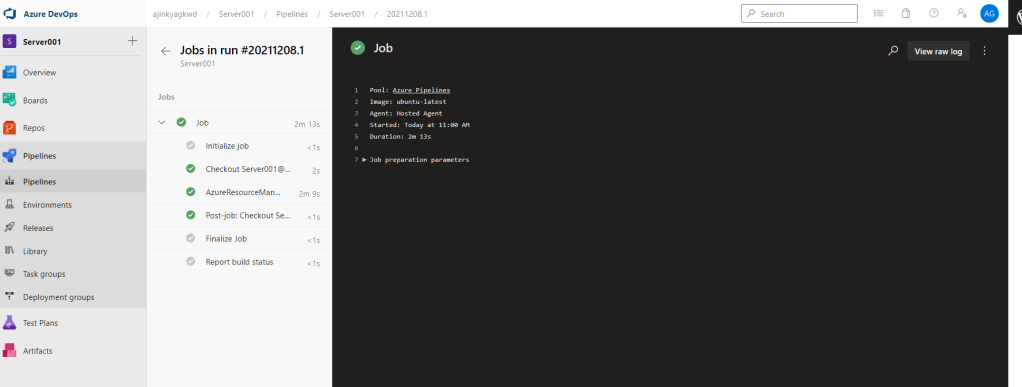

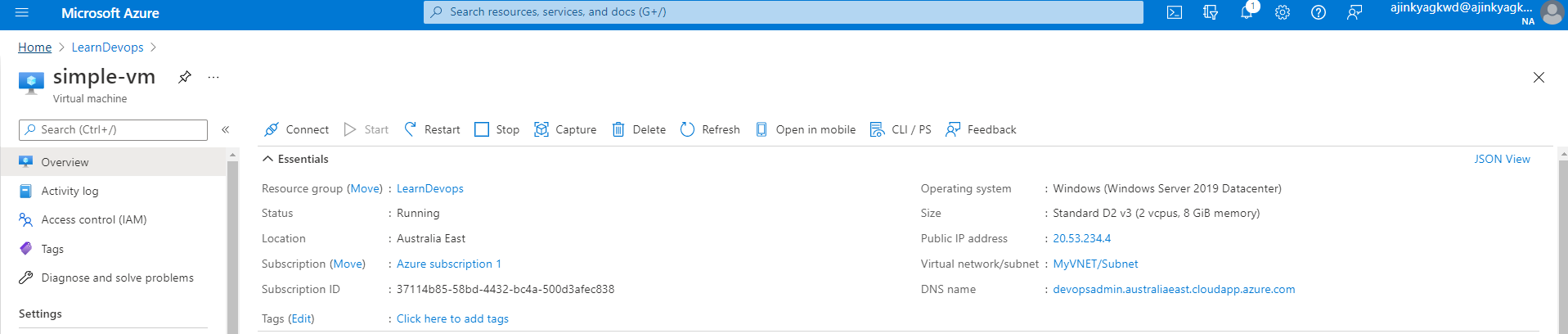
Once the deployment is successfully completed try connecting using RDP and local admin password.
Note: Do not forget to delete or deallocate the server to prevent charges.
Summary
We deployed simple server using ARM template and devops pipeline. Azure Pipelines are used to deploy your code to multiple targets. Targets include virtual machines, environments, containers, on-premises and cloud platforms, or PaaS services.
 Scriptested